Last updated by Rachel N. on 15/07/2025
DJI T25 vs T50 vs T100

The DJI Agras T100 was released recently.

Check our Shop page for the T100!

We’ll dive into a head-to-head comparison of the T25, T50, and the new T100 to see how they stack up and help you decide which drone fits your farming needs best.

We will also have a latest video with Nick and Oscar discussing the new coming T100. Coming soon


Flight Time, Speed & Payload

When it comes to agricultural drones, efficiency isn't just about how long they can fly — it's about how much ground they can cover in each flight.

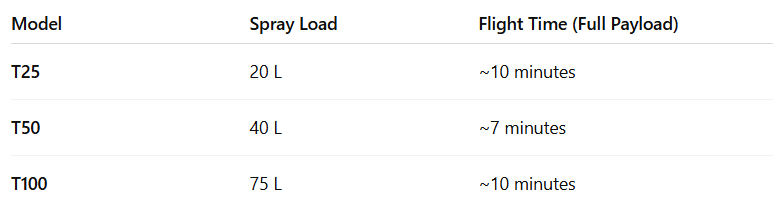
At first glance, the loaded flight times seem similar across models, but remember, the T100 is lifting nearly double the weight of a T50 and almost that of a T25 in each flight). 

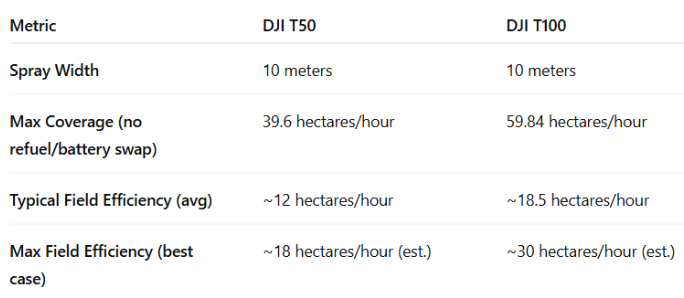
It drastically increases efficiency per sortie. From experience, our customers get to do 17-18hc per hour in maximum, with a typical operating efficiency of 12 hectares an hour. Given the T50 and T100 have a swath width of 10m, after some calculations on the expected coverage:

Fewer flights = fewer takeoffs, fewer refills, less battery swapping, and reduce the cumulative battery cycles and man-hours required. In a day of work, the T100 could complete 1–2 fewer flights than a T50 for the same area — and cut hours off a job compared to the T25. We estimate that a T100 could save around 20-25% in time and labor compared to using a T50 for the same workload. Over a long day, that might mean finishing a few hours earlier or covering extra fields – which lowers operating cost over time.

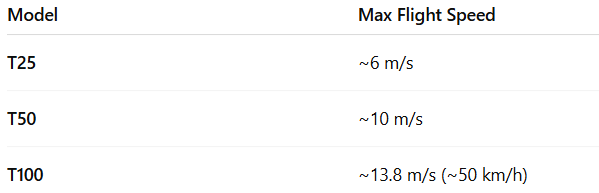
All three drones have similar recommended wind tolerance (around 6 m/s for safe spraying), but the T100’s heavier frame and more powerful motors provide extra stability in breezy conditions where a lighter drone might struggle. Faster and more stable flight translates into quicker job completion and the ability to operate in marginal conditions that might ground smaller drones.


Spraying Capacity

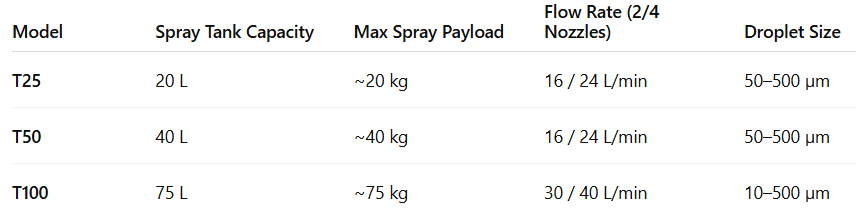
The T100 can empty its full tank in just ~2–3 minutes at max flow, allowing fast, dense applications when needed (e.g. fertilizer, frost control). You can also fine-tune spray settings for lighter, more delicate applications. It's fast and flexible.


Of course, not everyone needs that extreme capacity. If your typical jobs are small orchards or vegetable plots, a 75 L tank might be overkill (and you’re paying for capacity you won’t fully use every time). That’s why DJI still offers the T25 and T50 – they are more size-appropriate for modest needs. The T25’s 20 L tank is often enough for small farms or research plots, and its compact size makes refilling and handling very quick. The T50’s 40 L hits a sweet spot for many medium-sized farms – big enough to cut down refills significantly versus older 10–20 L drones, but not as large and heavy as the T100.


Spreading Capacity

The T100’s spreader is a beast for capacity and spreading rate. It now also features an intelligent screw feeder system with 4 different attachments to handle granule sizes from fine powder up to about 10 mm without clogging. For the T50, you have no options to change the feeder. Now for the T100, you are able to swap the screw feeders, which allows you to adjust how the granule drops and changes the spread width.

By comparison, the T50’s spreader holds ~75 L and can output ~100+ kg/min, and the T25’s holds 30 L (outputting ~190 kg/min max). All can effectively spread cover crop seeds or fertilizer, but the T100 can cover vastly more area per fill and is better suited for large-scale spreading tasks.

With a faster airspeed and stronger propulsion system, it helps to push the granules better to the soil and increase efficiencies.


Heavy-Lifting Mode (T100 Only)

Unique to the T100, it has a lifting mode with a winch hook that can carry up to 85 kg of payload (via a 10 m rope). 

This isn’t a feature used for crop spraying, but it opens up other possibilities on the farm – for example, hauling supplies to remote locations, ferrying irrigation equipment, or even supporting tasks like aerial firefighting with a small water bucket. Essentially, the T100 can double as an aerial crane for rural operations. We are excited to explore possible options for this new added lifting system.

Power and Battery Efficiency: Maximizing Uptime


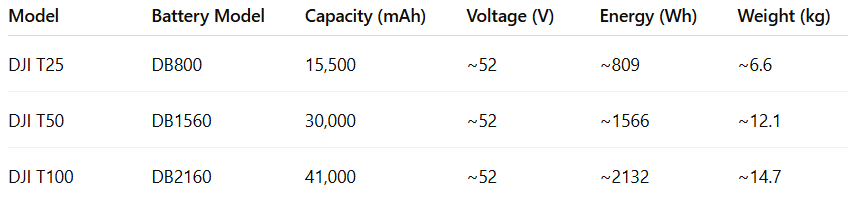
Despite the massive differences in capacity, all these battery systems are designed for rapid charging and long service life. The T100’s single battery carries roughly 1.8× the energy of the T50’s battery on its 9kW fast charger. By the time you’ve refilled the spray tank, a fresh battery can be ready to go.

Equally impressive is the battery lifespan. They are rated for up to 1,500 charge cycles with proper maintenance – far more than previous-gen drone batteries. In other words, they can be used for several seasons of heavy use before needing replacement, which significantly lowers your long-term operating costs.


Sensing and Autonomy

All three drones come with DJI’s proven Dual Active Phased Array Radar systems and binocular vision sensors. These give each drone a 360° awareness of its surroundings. In practical terms, they can detect obstacles in front of and behind the drone out to about 30 m (even in darkness or fog, since radar isn’t reliant on light). The drones will automatically brake and rise to avoid obstacles, and they also use this system for terrain following – hugging the ground contour to keep a constant height above crops, which is critical for even spray coverage. 


NOW: The Agras T100 has the onboard Lidar scanner and an augmented reality (AR) display system. The sensing range has also been increased from 30m to 60m on the T100. This helps with obstacle avoidance despite the increase in flight speed.  The spinning Lidar unit actively maps the environment in 3D with high precision. This means the T100 can pick up smaller or low-contrast obstacles that radar might miss – for example, thin power lines or bare branches. The Lidar data feeds into the new AR interface for the pilot: using the DJI Goggles or on the controller screen, you can actually see a live point-cloud visualization of the terrain and obstacles around the drone. They highlight power lines or obstacles (like an AR outline of a tree) and even project the drone’s planned path and landing point onto the display.


Remote controller

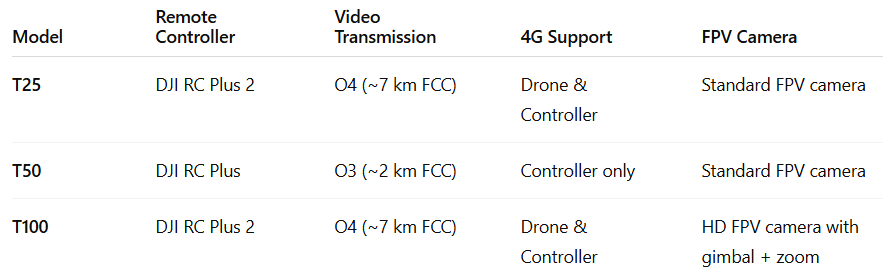
DJI has kept the user experience consistent across the T25, T50, and T100 – so if you can fly one, you can transition to the others with minimal learning curve. All three run on the DJI Agras/Pilot 2 application and support the DJI RC Plus series remote controllers (the T100 and newer T25 ship with the latest RC Plus 2, while the T50 uses the original RC Plus). The newer RC will give you better transmissions (O4).

These controllers feature a bright 7-inch screen, are weather-resistant, and have customizable buttons – perfect for outdoor use with gloves on, etc. The interface for mission planning is the same: you can draw or import field boundaries, set your spray parameters (like dosage per hectare, flight height, overlap, etc.), and the app will generate an efficient flight path automatically. One-tap takeoff and autonomous mission execution are standard on all.


Physical handling and transport
  • Agras T25: This is the smallest and lightest, weighing about 32–33 kg with battery. It has a compact folding design that one person can carry and deploy fairly easily (it’s about the size of a large suitcase when folded). If your operations involve moving the drone between many small fields, the T25’s portability is a big plus. You can throw it in the back of a utility vehicle or pickup and set it up in minutes by yourself.

  • Agras T50: With a takeoff weight around 52 kg (battery in), the T50 is heftier. It also folds, but you will typically use two people to lift and carry it safely, especially with a full tank. It’s still quite portable for its capacity – fitting in a ute/trailer and deployable by a small team in the field. Many consider the T50 the largest size that’s comfortably handled without specialized equipment. It strikes a balance between size and convenience.

  • Agras T100: This drone is massive – roughly 73 kg with battery and empty tank. It does have folding arms to reduce its volume for transport, but make no mistake, you’ll likely need a pickup truck or trailer dedicated to hauling it, and might require two people (if not some lifting tools) to move it around. Field deployment of the T100 might involve ramps or dollies to roll it out if it’s loaded. The extra logistics are something to plan for if you go with the T100 – it’s a powerhouse, but not as grab-and-go as a T25.

Another operational aspect is support and ecosystem. All these Agras drones tie into the DJI SmartFarm platform. This means you can log your flights, generate spray reports, and even use cloud-based tools for crop management. If you’re an agronomist or large farm manager, the data captured (spray volume, area covered, flight maps) can be invaluable for your records. The T100 being the newest also integrates with any upcoming DJI farm AI features (for example, spotting crop health issues via its camera, or connecting with DJI Base Stations for centimeter-level positioning). But even the T25 and T50 benefit from this ecosystem approach – they’re not isolated gadgets, they’re part of a larger smart farming toolkit.


Which Drone Should You Choose?


From our experience, many users start with what fits their current needs (maybe a T25 for a hobby farm or a T50 for a business). If you’re on the fence, consider your 2-3 year outlook: Are you taking on bigger projects or expanding your farm acreage? If so, opting for the larger model might save you from having to upgrade again so soon. On the other hand, if your work volume remains modest, the smaller models will serve you well without extra complexity.

Aside from increase in spraying and spreading efficiency, the new lifting features and safety systems is also something nice to consider as it adds a whole new purpose to the T100.

Lastly, consider redundancy and fleet composition – some large operators use multiple T50s simultaneously instead of one T100, for example, to have a backup and flexibility of splitting up for different fields. There isn’t a one-size-fits-all answer, but the good news is all three Agras drones carry DJI’s hallmark reliability and support. No matter which you choose, you’re getting a high-quality aircraft that has been tested and proven in real farming conditions worldwide.


Still not sure which drone is the perfect fit for your needs? Give us a call – we’re happy to talk through your requirements, budget, and expectations to help you make the right choice. We’ve worked with operators using all of these models and can offer insights into what will serve you best. When you’re ready, we can also provide training (Setup, RePL, Type ratings etc) and support to get you flying confidently.

DJI Agras T100: Shop page
DJI Agras T50: Shop page
DJI Agras T25: Shop page


View T100 bundles for sale - with option to reserve a kit from our first shipment

View 30 min first impressions video below


Last updated by Rachel N on 27/06/2025

DJI M400 vs M300/350 vs M600Pro

The DJI Matrice 400 (M400) was launched a few days ago on 10 June 2025 worldwide!

In this article, instead of discussing its general specs and features which are already available over the net:

To check for basic specs/ features of the M400, please check here.


When DJI released the M400, it wasn’t just about replacing the M300/600s, it was a rethink of what an enterprise drone could do. Everyone is discussing its capabilities compared to the M300/350 and M600, let’s see the differences and check out which suits you more!


We will cover different aspects including the flight performance, battery systems and implications, the payload capability and also real-world operational impacts! We will delve into specific technical comparisons, use cases, and real-life figures between the M400 and the comparable models.


Flight Time and Speed: Do More in a Single Launch

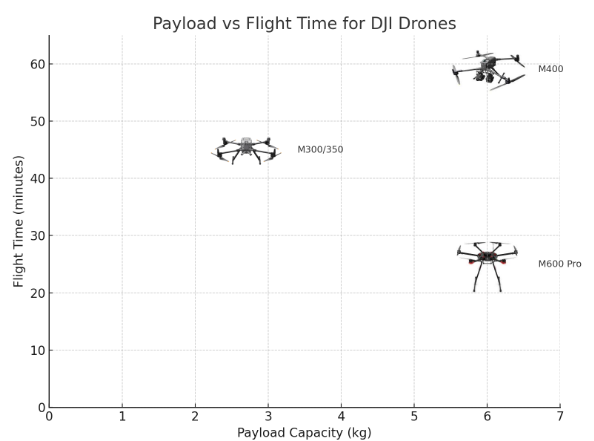
Endurance is everything when we are covering a paddock, inspecting power lines, or mapping remote bushland. The M400 flies up to 59 minutes with typical payloads like the H30T, compared to:

  • M300/350: ~40 mins (with H30T)

  • M600 Pro: ~20–25 mins (with 6 kg payload)

That’s 30–40% more usable airtime per flight compared to the M300/350, and double that of the M600 Pro. You don’t just get longer flights. In operation, you can do fewer takeoffs, fewer swaps, and fewer gaps in your data.


Whether it’s wind resistance or mission timing, the M400 leads:

  • Max speed: 25 m/s (90 km/h)

  • Wind tolerance: 12–15 m/s

That’s not just numbers. Faster and more stable flights translate into cleaner mapping grids, quicker job completion, and the ability to fly in more marginal conditions.


Power and Battery Efficiency

The M400 shifts from the dual-battery TB60/65 system to a single TB100 battery.

Matrice 300/350 dual-battery system (two TB60/65): 

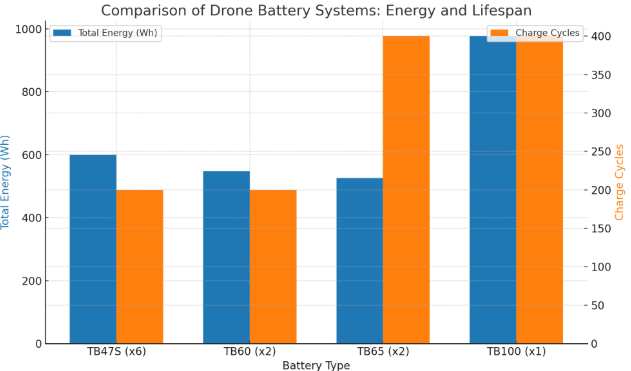
  • TB60 is 5935 mAh, ~52.8 V, ~274 Wh (~200 charge cycles)

  • TB65 is 5880 mAh, 44.76 V, 263, smaller battery capacity but can handle ~400 charge cycles, double lifespan of TB60.

  • Redundancy and hot swapping

Matrice 600 6-battery system (6 TB47s): 

  • TB47s is 4500 mAh, ~22.2 V, ~99.9 Wh (~200 charge cycles)

M400 single large battery (TB100/100c)

  • T100 is 20,254 mAh, 48 V, ~977 Wh (~400 charge cycles ), 

  • roughly 1.8× the total energy of a pair of TB60s. 

  • That’s why longer flight times. Also rated for ~400 charge cycles 

The TB100 is nearly twice the energy of the TB60 pair, and it still manages 400 charge cycles (same as TB65, twice the TB60 lifespan).

TB100 (400 cycles), meaning it has a longer lifespan, twice as long, so the cost is lower over time.

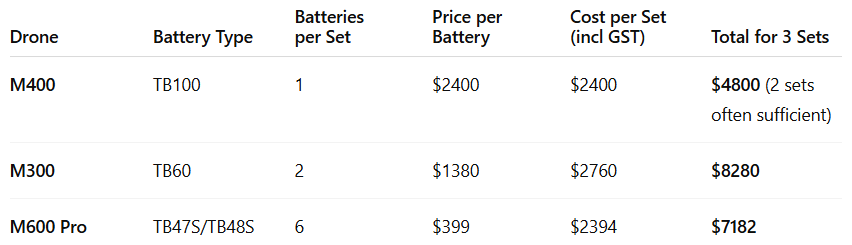
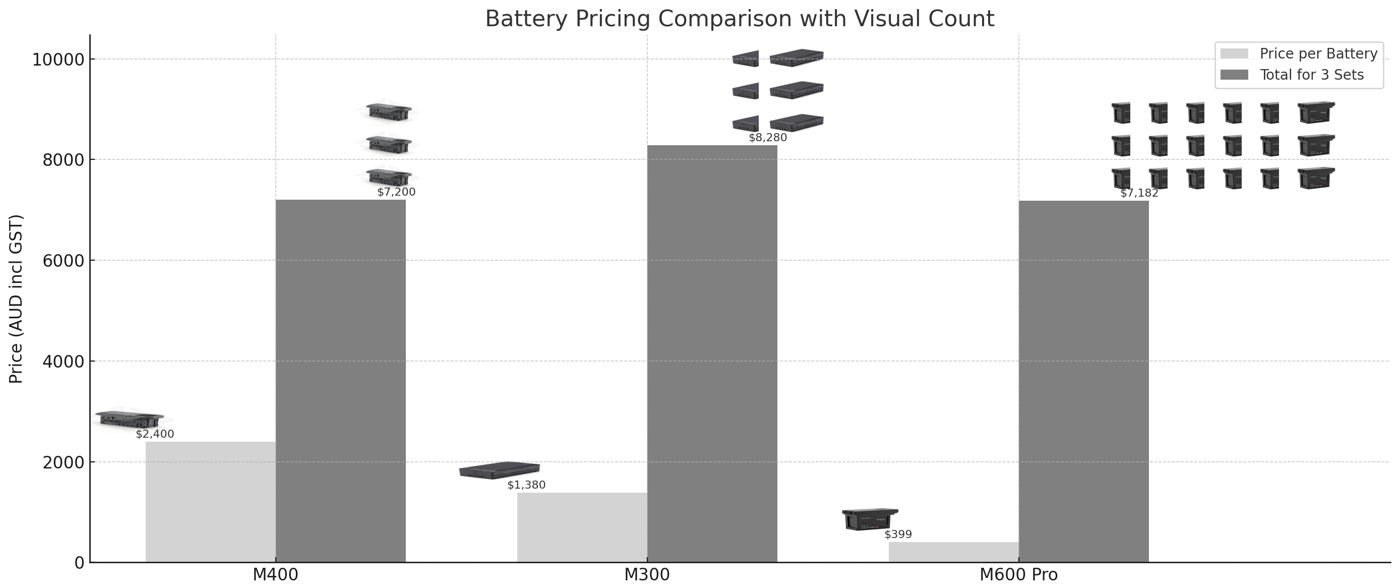
Cost-wise, it’s competitive:

Most pros get 3 battery sets. The M400 could do the same job with 2 sets instead of 3, and still have spare time. With a fast charger (BS100), one TB100 charges in ~45 mins, so a 2-battery cycle could keep you airborne all day.

But still, we do recommend getting 3 for redundancy, then you can have a set cooling down before charging them (better for the battery health).


Payloads: Heavier, Smarter, More at Once

The M400 can be a replacement for the M600 as it carries up to 6 kg which is the same as the M600 Pro, but with double the flight time. Compared to the M300/350's which carries 2.7 kg capacity, M300 can still be in your list if you are using a single payload for the mission.

For infrastructure inspections like powerlines or wind turbines, or Search & rescue missions, you usually take a zoom/RGB camera with a thermal sensor/Lidar. In these case, M400 is a good upgrade.

When it comes to surveying and mapping, you might only require the RGB or multispectral camera. In cases you do not require dual payloads or extremely long flights, the M300 is a more compact, field-friendly, and cost-effective solution. I would recommend getting the M400 if you are always doing mapping, getting a lot of jobs, it will save you up to 15-20% time and labour costs. The M400 can finish the job 1-2 flights less than the M300 in a day.

More importantly, it supports multiple payloads at the same time. Up to 7 attachments via 4 E-Port v2 ports. Think:

  • H30T

  • L1/L2 LiDAR

  • P1 mapping camera

  • Spotlight + loudspeaker for SAR

Previously, you’d need two drones or multiple flights to run thermal and LiDAR simultaneously. Now? One drone, one launch.


Sensor & Obstacle Avoidance

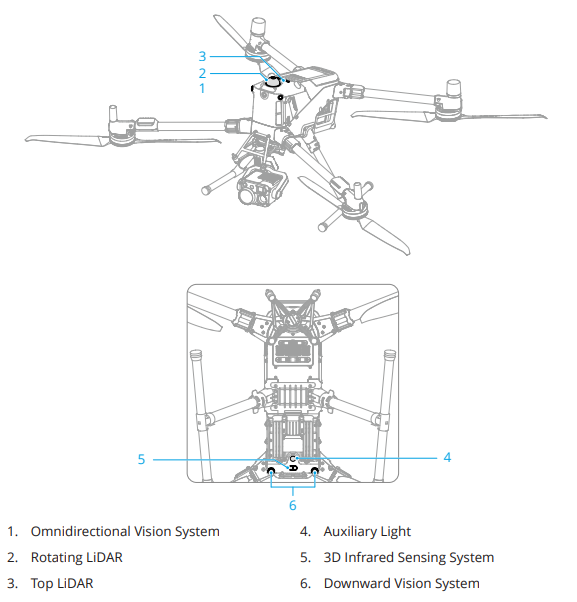
The M400's obstacle avoidance system combines:

  • Binocular vision

  • mmWave radar

  • Rotating LiDAR

Illustration obtained from DJI M400 User manual.

Unlike older models that rely on vision and infrared alone, this multi-layered detection system excels at spotting thin objects like power lines, even in low light.

Pair it with DJI’s Power Line AR + L2 LiDAR, and you’ve got a drone that can trace live transmission lines safely, quickly, and at speed.


Mapping Efficiency: Cover More, Fly Less

Mapping 1,000 acres (≈4 km²):

  • M300 + P1: ~5 flights (~4.5 hours incl. swaps)

  • M400 + P1: ~3–4 flights (~3 hours max)

That’s up to 1.5 hours saved per project—less labour, less wear and tear, fewer battery sets.


Field Use: Real Ops in SAR, Night, and Harsh Weather

From -20°C to 50°C, rain or dust, the M400 is IP55 rated and mission-ready. Use cases include:

  • Search & Rescue: Fly longer with TB100C tethered for extended ops

  • Night Ops: H30T + spotlight (S1) + speaker (V1) combo

  • Agriculture: Large paddock scan, thermal, NDVI, and RGB in one run

And for those already using the RC Plus controller and DJI Pilot 2 interface—zero learning curve.


Is the M400 Worth the Jump?

If you run complex missions, long-range inspections, or high-output mapping jobs, then yes, 100%.

It offers a balance:

  • M600 Pro power with M300 endurance

  • Heavier payload capacity than both

  • Longer battery life and smarter integration

It helps to reduce costs over time (operational time needed and long-term battery cost).


Give us a call if you need help deciding:

M400: Shop page

M300: Shop page

M600: Shop page


Last updated by Ron G. on 13/06/2025

The DJI Matrice 400 (M400) is DJI’s newest flagship enterprise drone platform. It’s designed for high-end applications such as public safety, inspection, emergency response, and construction (AEC). It builds on the foundation of the Matrice 300 (released in 2020) and the Matrice 350 (2023), offering major upgrades in flight time, payload flexibility, obstacle detection, and intelligent features.


For comparisons between M300, M400 and M600, please check: here.


Key Hardware Features

  • Flight Time and Endurance
    The M400 offers a maximum flight time of 59 minutes with a standard payload and approximately 53 minutes hover time. With a 3 kg payload, it achieves about 44 minutes, and with the maximum payload of 6 kg, it still manages 31 minutes of flight time. This represents a 50% improvement in endurance compared to the Matrice 350.

  • Flight Speed
    The M400 can fly at a maximum speed of 25 meters per second. It has an ascent speed of 10 meters per second and a descent speed of 8 meters per second, improving operational efficiency during takeoff and landing.

  • Payload Capacity and Configuration
    The drone supports single, dual, and belly-mounted gimbal configurations. It features 4 built-in E-Ports, with one capable of expanding into 4 additional E-Ports. Up to 7 payloads can be mounted simultaneously. Payload capacity has been increased to 6 kg, more than double the M350's capability.

  • Compatible Payloads
    Compatible payloads include the H30 camera series, P1 mapping camera, L2 LiDAR, S1 spotlight, V1 loudspeaker, and the Manifold 3 onboard computer. The M400 does not support older payloads like the H20 or L1 due to changes in hardware interfaces.

  • Battery System
    The TB100 high-capacity battery (20,000 mAh) supports hot swapping. Built-in capacitors provide 45 seconds of backup power, allowing GPS and core systems to remain active during a swap. The battery supports 400+ charge cycles and is available in a tether-compatible version for extended hovering.

  • Battery Charging Station (BS100)
    The BS100 station holds three TB100 batteries and offers rapid charging from 0% to 100% in 45 minutes (220V). It includes options for quiet mode, health monitoring, firmware updates, and auto-discharge.

  • Controller (RC Plus 2 Enhanced)
    The updated controller has a brighter display, more processing power, and includes support for sub-2 GHz frequencies using a clip-on antenna. It improves ergonomics and introduces back buttons for quicker access during flights.


Transmission and Connectivity

  • O4 Enterprise Enhanced Transmission
    Under FCC regulations, the drone can transmit video up to 40 km. Under CE/SRRC standards, it reaches up to 20 km. It also supports dual 4G dongles for automatic network switching to maintain stable connections in urban environments.

  • Relay Capability
    The M400 can act as a signal relay for another M400 or M4 drone. This is useful for extending range in difficult terrain. Operators can set up one drone to relay the signal while flying another, and the controller displays battery levels, signal strength, and real-time positioning for both drones.


Obstacle Sensing and Safety

  • Triple Sensor System
    The M400 combines three advanced sensing systems:

    1. Horizontal Rotating LiDAR mounted on top, detects thin wires (e.g. 21.6 mm at a 30-degree angle) and provides a 360-degree horizontal and 58-degree vertical field of view.

    2. Millimeter-Wave Radar is embedded in all six directions and detects obstacles like 12.5 mm wires up to 36 meters away. It functions well in fog, rain, or low light.

    3. Full-Color Fisheye Vision Cameras cover all four sides of the drone and provide real-time video for enhanced situational awareness. The downward vision sensor is black-and-white.

  • Environmental Resilience
    The M400 has an IP55 rating, offering protection against dust, rain, and strong winds. Its operating temperature range is from -20°C to 50°C, making it suitable for extreme environments.

  • Emergency Safety Features
    The drone will not take off if arms or batteries are not properly secured. It includes anti-collision beacons, and in the event of failure, it supports a three-propeller emergency landing mode if conditions allow. An ADS-B receiver alerts the pilot to nearby manned aircraft.


Intelligent Flight and AR Capabilities

  • Augmented Reality (AR) Overlays
    AR visuals help pilots see power lines, roads, addresses, and landing zones directly in the FPV view or on the map. This increases flight safety and communication clarity.

  • Smart Flight Planning
    The M400 includes intelligent features such as:

    • Cruise control with speed and direction lock

    • Tap-to-fly to specific map points

    • Orbiting points of interest (POI)

    • Real-time terrain following, both automated and manual

    • Live map annotations for lines, polygons, and areas

  • Tracking and Detection
    AI-powered SmartTrack enables detection and tracking of vehicles, people, boats, and manually selected objects using both visual and thermal imagery.

  • Opto-Rail Feature
    Marks the field of view of the camera on the map in real-time, which is particularly useful for search and rescue operations.


3D Mapping and Photogrammetry

  • Smart 3D Capture
    With the P1 camera, the M400 can perform a quick flyover, generate a preliminary 3D point cloud, and then automatically calculate a photo-capture route based on desired resolution. The result is a high-detail 3D model.

  • Slope and Geometric Path Support
    The M400 supports complex flight paths for mapping sloped terrain and other uneven surfaces, ideal for surveyors and mapping professionals.


Maritime Operations

  • Boat Mode for Takeoff and Landing
    The M400 supports dynamic takeoffs and landings on moving vessels using a 3x3m marker on deck. The drone recognizes the marker and lands accordingly, even with return-to-home canceled. The controller’s GPS can serve as a moving home point.


Payload Integration and Accessories

  • S1 Spotlight
    Delivers a high-intensity, auto-aligned beam. The spotlight aligns with the camera's zoom to ensure accurate illumination.

  • V1 Loudspeaker
    Supports pre-recorded messages, real-time audio, and multi-language text-to-speech. The UI shows audio directionality for precise communication.


Software Ecosystem

  • DJI Pilot 2
    The primary app for controlling the drone and accessing intelligent features.

  • DJI FlightHub 2
    Enables live streaming, remote planning, payload control, and mission sharing. Also available in an offline mode for secure operations.

  • DJI Terra & DJI Modify
    For post-processing of 2D/3D maps and point clouds. Allows editing, annotation, and sharing of models.


Data Security and Offline Operations

  • Encryption and Privacy
    SD cards can be password protected. A local data mode disables all external communication. Logs can be deleted directly from the app before service or after sensitive missions.

  • Offline Firmware Updates and Custom Maps
    Firmware can be updated using an SD card without internet access. Custom map layers can be imported using standard map tile formats (.mbtiles), ensuring full operational flexibility in disconnected environments.


Comparison with the Matrice 350

  • The M400 offers approximately 50% longer flight time with payload.

  • It doubles the payload capacity (6 kg vs. ~2.7 kg).

  • Adds mmWave radar and LiDAR sensing in addition to visual systems.

  • Supports up to 7 payloads simultaneously with new mounting architecture.

  • Includes longer range (up to 40 km FCC), enhanced controller, and expanded accessory compatibility.


Use Cases

  • Public Safety
    Real-time video, speaker and spotlight control, AR overlays, and terrain-following for efficient incident response.

  • Search and Rescue
    Terrain-aware auto flight paths, live annotations, SmartTrack, and long hover time for overnight missions with tether battery.

  • Maritime Patrol
    Boat landing mode, long-range communication, and improved stability make it suitable for offshore operations.

  • Power Line Inspection
    Auto-follow for transmission lines, thin-wire detection, and high-resolution LiDAR support.

  • Survey and Mapping
    Smart 3D capture, slope planning, and terrain tracking with DJI Terra and DJI Modify.

  • Notable Project Example
    DJI used the M400 to map the Great Wall in extreme wind conditions, completing the mission in just 3 hours and producing a detailed 3D model.


For comparisons between M300, M400 and M600, please check: here.


Last updated by Rachel Ng on 28/05/2025

Do you wonder how to access the flight data for your drone?


This is a quick guide on using AirData UAV if you own a DJI drone. In this guide, we will be using the M600p as a demonstration to show you the steps from post-flight to data accessing.


Record keeping

You can easily upload and sync your flight log. It is a good way to keep track of all your flight records, and it is free!


Troubleshooting

If something bad happens in flight, or you want to know some of your problems in the air, air data gives good records. All the flight details and basic information are on the overview page. Below are some examples of what you can get out of it.


General flight information and GPS data

Cell performance and deviations

By monitoring the battery health (voltage, temp, cell balance). It helps to catch early signs of degradation.

Signal map and strength of different sensors.


Stick input analysis

With all the flight performance (Altitude, speed, pilot stick input (%) etc)x


All the above data can be exported in CSV, KML, PDF for flight analysis or maintenance records in case you need to do a warranty claim!


How?

Steps to guide you through:


  1. After flight, feel free to shut down your drone. Only your device (eg. phone) is needed to extract data from it. The flight records are already saved under a folder inside your device.

  2. Connect your phone to the laptop with a cable → Under the drive folder of your device → access the DJI Go folder from it.

  3. There is a folder called “FlightRecords” with .txt files of your flights. Download them to your computer. For each flight, you should be getting on .txt files.

  4. Create an account and log into AirData.


  1. To upload the flight records, navigate as below:

Go to the top right corner, click the setting icon.

Open “MY LOGS” 

Go to “UPLOAD”.

From here, you can drag all the .txt files and upload them to the server.


  1. After uploading, go to “FLIGHTS”.


From here, you can access different information of the flight. On the bottom of the overview, there is also an option to download the data in different formats.


Last updated by Rachel Ng on 15/05/2025

The M4E now features the Smart 3D route function which solves the issue by running an automated flight route which helps to capture multiple images from different angles. This greatly improves the accuracy and completeness of the models reconstructed in Terra. 


If you have been using M3E for your mapping or surveying tasks, you should be familiar with the Area route flight mission planning. It is a great tool to construct 2D and 3D models. However, you may sometimes figure there’s: missing gaps, collapsed structures, or low quality images. 


In this article, we will cover how to do it with your M4E!

We also got a YouTube video guide! Check here: https://www.youtube.com/watch?v=WvyClhbOYeQ.


Short summary

It is done by running two coordinated flights, the main idea is:


  1. First flight running the standard Area Route option

    • In your RC, choose the area route option and select the area of interest. A flight route will be automatically generated. Deploy the drone and it will capture top-down (orthophoto) images over the selected area.

    • The data captured can be used to generate a rough point cloud model, they are stored and all done with just the RC.


  1. Generate Smart 3D Flight path (Oblique Mission)

    • Back to the menu, select the Smart 3D flight mission, you should be able to access the data file obtained from First Flight.

    • After opening that file, the rough model will be automatically generated inside the RC screen. You can then select the target and adjust the area.

    • Based on the rough model and area selected, it can automatically help to plan a second flight path with multiple oblique angles.


  1. Second flight with the new 3D flight path

    • Run the mission plan generated from step 2. The data collected from this run is the files to be imported into Terra for 3D model reconstructions.


Detailed walk-through

  1. First flight - 2D ortho capture (Area route mission)

To begin with, start a normal Area route mission (like how you did with the M3E!), select your area of interest then proceed.

VERY IMPORTANT: For the settings, remember to select Oblique Collection → Enable Smart Oblique and Local Mapping. This allows the RC to process and construct a rough 3D model after the first mapping.

When ready, Fly the mission!


  1. Generating the Rough 3D model

After the first flight, wait for the rough model to be processed. When done, go back to the home page and select Route again!

This time, we want to click into the Smart 3D capture mission.

Then, select the file related to the flight we did just now, it will show up in the side menu.

A rough map is constructed for you, what you need to do is select the target you want to map. In this case, we are trying to map the building, so I select the area around the house.

  1. Flight route planning for the second mission (Smart 3D capturing)

After confirming the area to plot, wait for a few seconds, the flight path (green lines) are automatically generated for you. Adjust the parameters as required.


  1. Fly the second mission

Hurray! What’s left is just to run this mission, then it’s done.

The flight path is projected for your reference!


  1. Upload all the files to Terra

Final steps is to take the SD card out of your drone, then pass it to Terra.


For more details, feel free to visit our youtube video, we guide you through all the steps!

https://www.youtube.com/watch?v=WvyClhbOYeQ


Last updated by Nick S. on 07/05/2025

It has four sensors, including the zoom, wide, thermal camera and the laser rangefinder (LRF).

A popular solution with the M300/M350. The increased weather capacity, zoom power and LRF is what stands out from the Matrice thermal series.


Quad-Sensor Integration:

Combines a 20MP zoom camera, 12MP wide-angle camera, laser rangefinder (up to 1200m), and a radiometric thermal camera (640×512 resolution) — all in one compact gimbal.


20x Hybrid Optical Zoom:

The zoom camera offers up to 200x max zoom (hybrid), enabling detailed inspections from a safe distance.


Radiometric Thermal Imaging:

The thermal sensor captures temperature data with spot and area temperature measurement, isotherms, color palettes, and temperature alerts — essential for firefighting, search and rescue, and industrial inspections.


Laser Rangefinder:

Measures accurate distances to subjects between 3m to 1200m, with real-time location data displayed onscreen.


Night Scene Mode:

Enhances visibility in low-light conditions using the visual camera’s special imaging mode for nighttime operations.


High-Res Grid Photo:

Automatically captures a grid of high-resolution zoom images for detailed post-mission inspection and documentation.


AI Spot-Check:

Uses onboard AI to detect and frame pre-marked subjects for consistent, repeatable inspections.


Seamless DJI Integration:

Fully compatible with DJI’s Matrice 300 and 350 RTK systems, offering live mission planning, waypoint automation, and data sync with DJI FlightHub and Pilot apps.


IP44 Rated:

Weather-resistant design ensures reliable operation in rain and harsh field environments.


Smart Track:

Automatically detects and tracks moving subjects such as people, vehicles, or boats, while continuously reporting their real-time location.


Standard rental package "dry hire" includes:


1 x Zenmuse H20T 


Item

3 days

7 days

14 days

30 days

Standard rental package above

390.00

690.00

1,090.00

1,989.00

Figures are Ex. GST. Rental terms and conditions apply. Security deposit required. Extra batteries available for an additional fee.


The estimated shipping fee each way in Australia for this item is as below, sent via Toll or Australia Post if preferred. Overnight express also available as needed. Note that the shipping duration (days in transit) are not included as billable days in your hire agreement:

Sydney - Canberra ~ $35 

Sydney - Melbourne ~ $35

Sydney - Brisbane/Sunshine Coast ~ $35 

Sydney - Adelaide ~ $36 

Sydney - Perth ~ $52

Sydney - Darwin ~ $76

Sydney - Hobart ~ $66


Contact the DFH Head office on [email protected] or 1300 029 829 for more information, availability, and pick up / drop off arrangements. 


Rental Enquiry Form


Last updated by Nick S. on 07/05/2025

​The Wingsland Z15 is a high-intensity, 3-axis stabilized gimbal spotlight designed for DJI Matrice drones, offering powerful illumination for low-light operations such as search and rescue, firefighting, law enforcement, and infrastructure inspection.​


Z15 Gimbal Spotlight rental


Key Features

  • Exceptional Brightness: Equipped with four high-power LEDs, the Z15 delivers up to 10,200 lumens of light, effectively illuminating areas up to 150 meters away. ​
  • Multiple Lighting Modes: Adapt to various scenarios with three selectable modes: Always On, Flashing, and SOS. ​
  • Advanced Thermal Management: A built-in air-cooling system and intelligent protection mechanisms prevent overheating, automatically adjusting performance if internal temperatures exceed 90°C. ​
  • Seamless Integration: Utilizing DJI's SkyPort interface, the Z15 is compatible with DJI Matrice 200/210/300 series drones and supports dual downward gimbal configurations, allowing concurrent use with Zenmuse payloads like the XT2, Z30, or X5S. ​
  • Precision Control: The 3-axis gimbal provides smooth and accurate positioning, with a 15° field of view and a controllable range of ±90° pitch and ±170° yaw. ​
  • Robust Design: Weighing 500g and measuring 100×110×150 mm, the Z15 is built for durability and reliable performance in demanding environments. ​
  • Ideal for professionals requiring dependable aerial lighting solutions, the Wingsland Z15 enhances operational capabilities in challenging conditions.


Standard rental package "dry hire" includes:


1 x Z15 Gimbal Spotlight 


Item

3 days

7 days

14 days

30 days

Standard rental package above

390.00

690.00

1,090.00

1,989.00

Figures are Ex. GST. Rental terms and conditions apply. Security deposit required. Extra batteries available for an additional fee.


The estimated shipping fee each way in Australia for this item is as below, sent via Toll or Australia Post if preferred. Overnight express also available as needed. Note that the shipping duration (days in transit) are not included as billable days in your hire agreement:

Sydney - Canberra ~ $35 

Sydney - Melbourne ~ $35

Sydney - Brisbane/Sunshine Coast ~ $35 

Sydney - Adelaide ~ $36 

Sydney - Perth ~ $52

Sydney - Darwin ~ $76

Sydney - Hobart ~ $66


Contact the DFH Head office on [email protected] or 1300 029 829 for more information, availability, and pick up / drop off arrangements. 


Rental Enquiry Form


Last updated by Nick S. on 17/04/2025


Oscar (DFH head of Agriculture) with a customer Dave - getting his repaired T40 back home ready for work again

Oscar (DFH head of Agriculture) with a customer Dave - getting his repaired T40 back home ready for work again.


Last updated by Nick S. on 15/04/2025


1. Unmatched preparedness and willingness to support


Drones For Hire is an authorised DJI Agriculture Service Centre (DJI ASC).  This is because of our ag drone knowledge accumulation, service centre capabilities (repairs, demonstrations, training) and support network of technicians. We have multiple staff certified as official DJI Academy Certified Agras Instructors & DJI Certified Agras Repair Technicians. These staff had to pass exams and do complete disassembly and reassembly videos to show their knowledge is real.  Drones For Hire began selling the DJI MG-1P spray drone and has sold more DJI Ag. drones than any other dealer in Australia. We were doing demos for the T30 which had the older pressure (Teejet nozzles) back in 2022/3 (3-min video), T40 demo, and T50 demo . We support customers with a mature library of tech support videos such as this 5-min spreader calibration video tutorial. Here is a 2-min stockman video about the benefits of a regular sized drone (M3E) for scouting stock yards, monitoring feral pigs and even mustering.    


2. A setup and training day included at no cost


Spray drone purchasers receive a full day with a Drones For Hire technician for equipment set up and training. Face to face on your property. Drones For Hire has 2-3 technicians in each state, who typically own and use DJI spray drones, and mapping drones and related gear. We can’t underestimate how important this is and how often customers thank us for it. Because it means the technician has relevant knowledge and context as to how to best apply the technology to the kind of country you have on your property and your spraying/spreading goals. 


3. Mapping session included at no cost


A complimentary M3M/M4E (Mavic 3 Multispectral or Matrice 4 Enterprise) mapping flight to map the first 10 ha section of your property, as part of your setup day. Note this can be changed by request to e.g. demonstrate the Matrice 4 Thermal drone (for e.g. spotting feral pigs, counting cows, checking water levels in a cotton field).


4. Spray drone jobs subscription credit included at no cost


Credit for receiving spray drone job inquiries from our job inquiries marketplace (55,000 inquiries processed since 2013 – Australia’s largest and longest running drone job marketplace). 

Very handy if you wish to use your spray drone as a commercial business or just to pick up the odd local job.


5. Official AU stock that has a warranty and is insurable 


Drones For Hire is not interested in black market / grey market / illegal imports. These units are geo-locked by the OEM meaning they will only take off in a specific country / region of the world. Additionally, there is no local AU warranty, and the owners’ insurance policy will be void when they make a claim since the SN Serial Number will not pass the OEM reference check. Above all, these units are usually very poorly supported if at all, and arranged by short sighted, transient suppliers. 


Drones For Hire stock is legitimate and correct for the AU region and backed with an official DJI warranty. We have a good and long standing relationship with the leaders of DJI Agriculture, and local DJI staff in Australia.  


6. A commitment to innovation and local manufacturing 


Drones For Hire manufactures our own aluminium enclosures for spray drones (2-min video)


Drones For Hire also makes our own Batch Master chemical mixing stations, Fast Mover T50 transport kits, Fast-fill caps, RTK Hard Cases and various other items. 


Culturally, Our goal is to be the most farmer-centric ag. drone business in Australia and to grow fast by investing in our ‘support is sales’ mantra, and the mechanisms that enable it. 


7. Ag drone spares ready to ship


Drones For Hire recognises the urgency when a farming machine is out of action – often it happens at the worst time and can lead to yield and other losses. Our customers are always juggling different priorities and changing weather systems , varying prices for their crops/ beef/ wool etc.  

For this reason, Drones For Hire has pre-ordered and has in supply a large number of ag drone spares that we can ship very fast via our Toll Priority partnership. In all cases, we try our best to quickly understand the situation, identify the parts requirement, ship without delay and arrange help as required.


8. $1000.0 spares kit include at no cost 


We also include a $1000.0 spares kit for free with all our T50 bundles. The kit contents are carefully considered by our technicians and are updated when needed to give you the best chance of continuing to spray when a consumable part needs replacing.  


9. A solid presence in the Australian drone industry 


Drones For Hire has been operating for more than 10 years, and operates the largest and longest running drone jobs marketplace, having processed more than 55,000 drone jobs. Drones For Hire also sells $M of drone hardware each year and has a large dry-hire drone rental fleet. 


 10. A full workshop dedicated to repairs, modifications


Drones For Hire has a workshop for all warranty and non-warranty repairs. It consists of the equipment necessary to support our clients and keep their gear running such as a large working area, 100 ha for flight testing and training, substantial tools, winches, generators, vehicles, trailers, mixing/batching tanks, granular bins and a mapping training area/media area. 

Feel free to reach out and ask about the suitability of a T50 for your own property or for your contract spraying business:  [email protected] or 1300 029 829.


Go to T50 bundles (shop page)

Go to DFH store for DJI Agras T50


Last updated by Nick S. on 15/04/2025


Whatever your final T50 shopping list includes: always consider the long term and Total Cost of Ownership (TCO) on your DJI Agras 50.


If your T50 is out of action because you can’t figure out how to do something specific or because it needs parts/repairs, and you can’t get support, consider the cost of losing part of your crop or losing control of your weeds. And for contract sprayers , the cost of losing a contract and losing your local area reputation as a dependable service provider. 


I. Choose a supplier that is renowned for support and look for evidence that they can. 


The temptation is to focus on the initial purchase price – we all do it. After all, that’s the figure that’s most visible and often the first number discussed. 


Another often-overlooked component of the TCO is the cost of poor knowledge. The DJI Agras T50 is a powerful tool, but like any sophisticated technology, it requires proper training and knowledge from a good dealer , to maximize its potential. We find that just some small tips can go a long way, even basic stuff, for example explaining how Manual+ mode (in the controller) can be far more effective than regular manual mode. It is also a big advantage so not only have a drone expert teaching you the system, but also someone that understands agriculture and contracting applications. 


The cost of poor knowledge / inadequate supplier training isn’t just about operating inefficiencies—it’s about missed opportunities for improving crop health, maximizing productivity, and lowering input costs. It’s essential to invest not only in the drone but also in comprehensive training and support to ensure that the equipment is used to its fullest potential. Knowledge gaps could lead to higher operational costs, poor performance, and ultimately, reduced returns on investment. DJI T50s are very well thought out with useful flight modes and settings for different mission types  - use them to your advantage. 


II. Choose a supplier that is invested in the future


Some more DJI T50 sellers have started to pop up, many of them single operators with an ABN, a spray drone, and ute. Consider these sellers’ capacity to support customers and willingness to stay the course when things get complicated or busy.  


$34K (ex GST) isn’t much for an agricultural machine that is as capable and versatile as a DJI T50. With the right approach to this technology you will see that back in under 6 months, and many times over , in a 2-3 year period , especially when you have critical spraying /spreading to do .Just  make sure you go in to it the right way;


  • Get good advice for your initial setup (gear list that matches your needs), 
  • Get training that is specific to your spraying priorities , and ideally bring in a 2nd person (son, contractor, farm hand) for redundancy and help along the way.  
  • Go with a reputable supplier who has the means to arrange good support at short notice.


Go to T50 bundles (shop page)

Go to DFH store for DJI Agras T50